
Gemini Omni 1.2 Flash AI Video Generator
Turn a prompt, a photo or a few reference images into a 15-second Gemini Omni 1.2 Flash video with dialogue and sound, then keep editing it in plain words. Swap the street for Paris, relight the scene at golden hour or bring in a second character without starting over.
What's new in Gemini Omni 1.2 Flash
Gemini Omni 1.2 Flash is the November 5, 2026 update to Google's Gemini Omni video model. It keeps what made Omni stand out, any mix of text, images and video in and a finished clip with sound out, and makes clips longer, steadier and cheaper, with editing that runs as a conversation.
- Clip length1.1 Flash
10 seconds1.2 Flash15 seconds - Editing1.1 Flash
One request1.2 FlashMulti-turn chat - Visual drift1.1 Flash
More drift1.2 FlashLess drift - Dialogue1.1 Flash
Less natural1.2 FlashNatural multi-speaker - Camera control1.1 Flash
Less control1.2 FlashDeeper camera and POV - Google API price1.1 Flash
1.1 rate1.2 Flash30% lower
Gemini Omni 1.2 Flash features
Five Gemini Omni 1.2 Flash features, all ready to use in the generator above.
15-second text to video with dialogue and sound
The model writes picture and audio together, so a whole scene fits in one 15-second take: lines in sync with lips, footsteps, rain, music.
- Any length from 4 to 15 seconds
- Several speakers in one clip, each with their own voice
- 16:9 for YouTube, 9:16 for Reels and TikTok
Edit Gemini Omni 1.2 Flash videos by chat
Ask for one change at a time and the model keeps everything else in place. Upload your own clip of up to 15 seconds or keep refining the one you just made.
- Swap the background, an object or a product
- Change light, weather, time of day or style
- Each turn builds on the last one
Image and reference to video with consistent characters
Add up to six reference images, three for each of two characters, and Gemini Omni 1.2 Flash keeps faces, outfits and products the same from the first frame to the last.
- Image to video from a single photo
- Up to three short reference clips for motion
- Tag a reference in the prompt to place it
First and last frame, then extend to 30 seconds
Upload where the shot starts and where it ends, and Gemini Omni 1.2 Flash animates the 3 to 10 seconds between them. Extend any clip in steps of 3 to 10 seconds up to 30 seconds.
- Exact opening and closing shots
- Continue a scene without a visible cut
- Build a longer story one step at a time

Real-world physics and camera direction
Gemini Omni 1.2 Flash draws on Gemini's knowledge of how things move, so water splashes, fabric folds and objects collide the way they should. Write the camera move and the point of view into the prompt and the shot follows it.
- Tracking, dolly, crane and handheld moves
- First-person and over-the-shoulder views
- Science and history scenes that stay accurate
Gemini Omni 1.2 Flash vs Veo 3.1 vs Seedance 2.0
Three strong video models, three different strengths. Pick by the clip you need.
| Feature | NewGemini Omni 1.2 Flash | Veo 3.1 Fast | Seedance 2.0 |
|---|---|---|---|
| Longest clip | 15 seconds, 30 with extend | 8 seconds | 15 seconds |
| Inputs | Text, a photo, first and last frame, 6 reference images, 3 reference clips, your own video | Text, a photo, first and last frame | Text, a photo, first and last frame, 9 images, 3 videos, 3 audio clips |
| Edit by chat | Turn by turn | No | One edit per run |
| Sound | Always on, multi-speaker dialogue | Native audio | Optional audio |
| Top resolution | 4K | 1080p | 720p |
| Best for | Longer scenes you refine by talking | Quick 8-second shots | Scenes built from many references |
| Credits per clip with sound, 720p | 65 credits for 8 seconds | 55 credits for 8 seconds | 280 credits for 5 seconds |
Where to use Gemini Omni 1.2 Flash and what it costs
Google offers Gemini Omni 1.2 Flash in the Gemini app, Google Flow and Google Vids, and to developers through AI Studio and the Gemini API. Aleph AI puts it in the browser with free credits to start and other leading video models next to it.
| Option | Gemini app | Google Flow | Google Vids | Gemini API / AI Studio | This pageAleph AI |
|---|---|---|---|---|---|
| What you need | Google AI Ultra plan | Google AI plan | Google Workspace or Google AI plan | API key and billing | A free account |
| How you pay | Monthly subscription | Monthly subscription | Monthly subscription | Per second of video | Credits, free ones to start |
| Made for | Quick clips in a chat | Filmmaking scene by scene | Work videos and presentations | Developers building apps | Making videos in any browser |
| Other video models | Google only | Google only | Google only | Google only | Veo 3.1, Seedance 2.0, Kling and more |
Gemini Omni 1.2 Flash prompts, one turn at a time
Gemini Omni 1.2 Flash gives its best results from a clear first prompt and short follow-up edits. Here is one scene built in four turns.
- Write the shot like a director: who is in it, where, what light, and how the camera moves.
- Put spoken lines in quotes and say who speaks them.
- Keep each edit to one change and name what stays the same.
- Write what you don't want into the prompt itself, since there is no separate negative prompt.
- Turn 1 · Generate
Night, light rain on a narrow Tokyo side street lit by neon. A young woman in a cream trench coat walks toward the camera as it tracks backward at eye level, shallow depth of field. She smiles and says: "Fifteen seconds is all I need." Soft rain, distant traffic, a quiet synth beat.
Target shot
- Turn 2 · Change the place
Keep her, her coat and the camera move. Change the street to a sunlit Paris boulevard in the morning, with café terraces and plane trees.
Target shot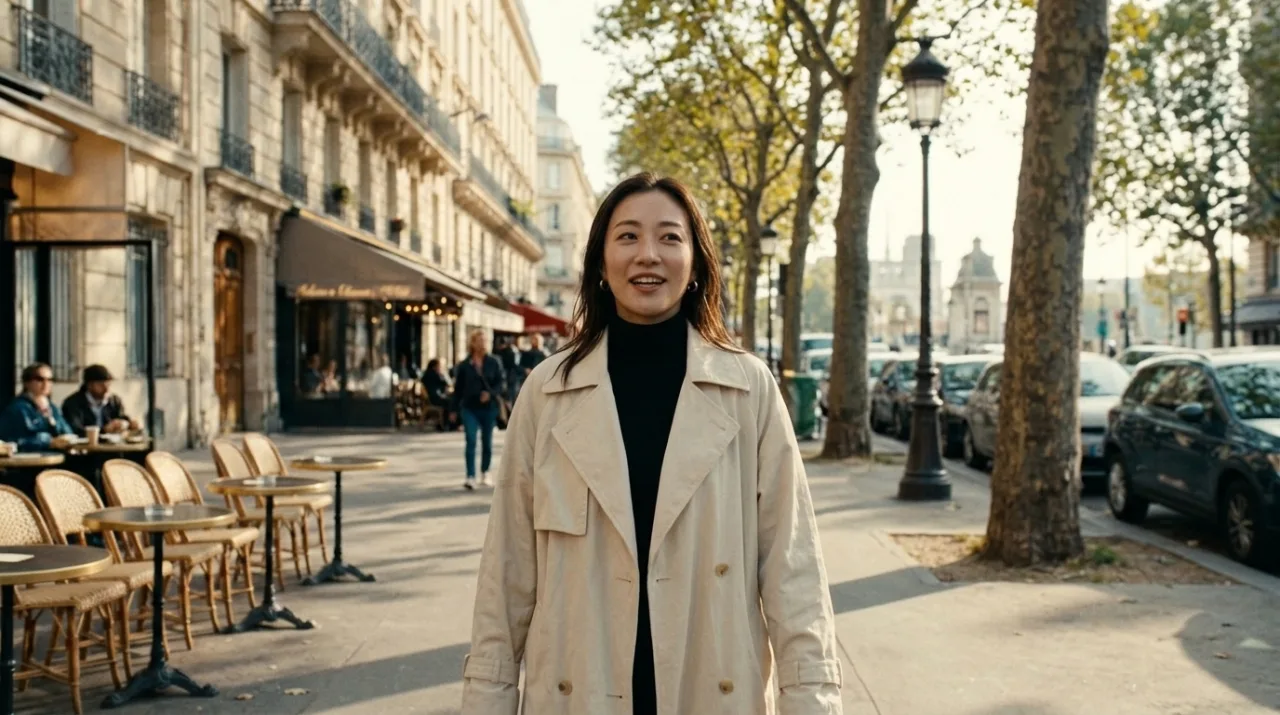
- Turn 3 · Relight
Same scene at golden hour: low sun behind her, warm rim light in her hair, long soft shadows.
Target shot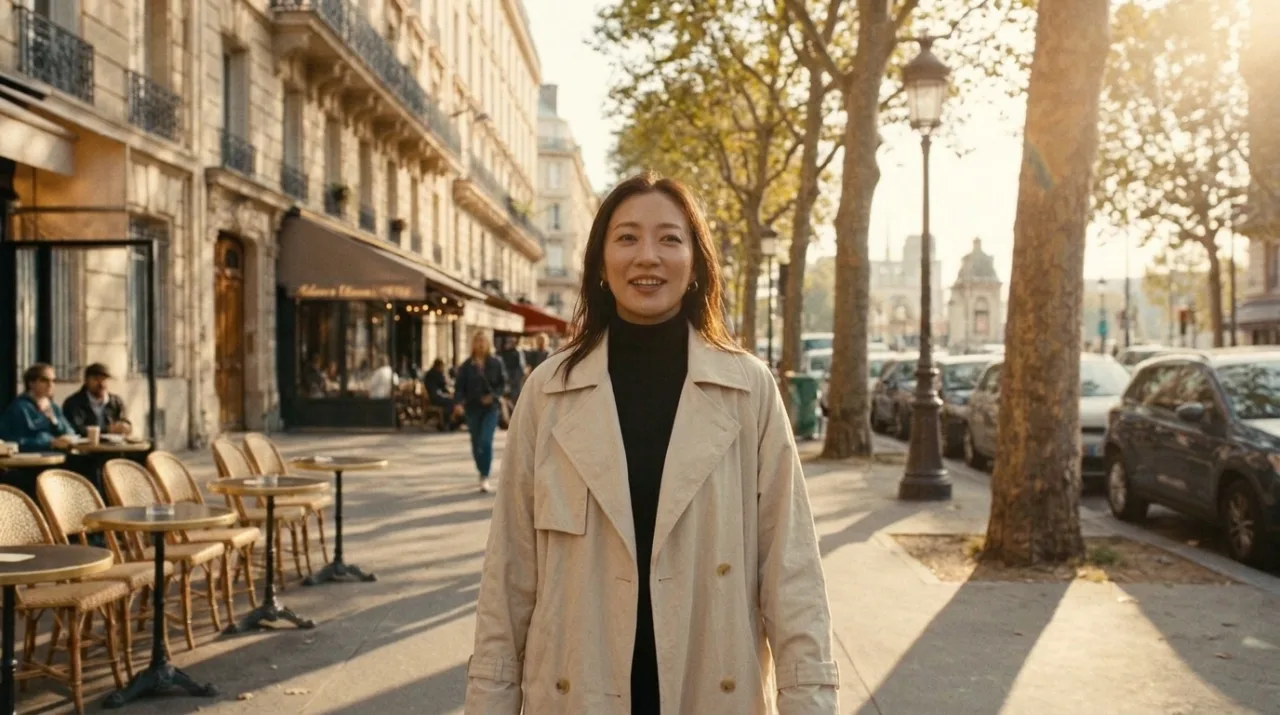
- Turn 4 · Add a character
A young man in a navy overshirt catches up and walks beside her. He laughs and asks: "So, where to next?" She answers: "Anywhere with better light."
Target shot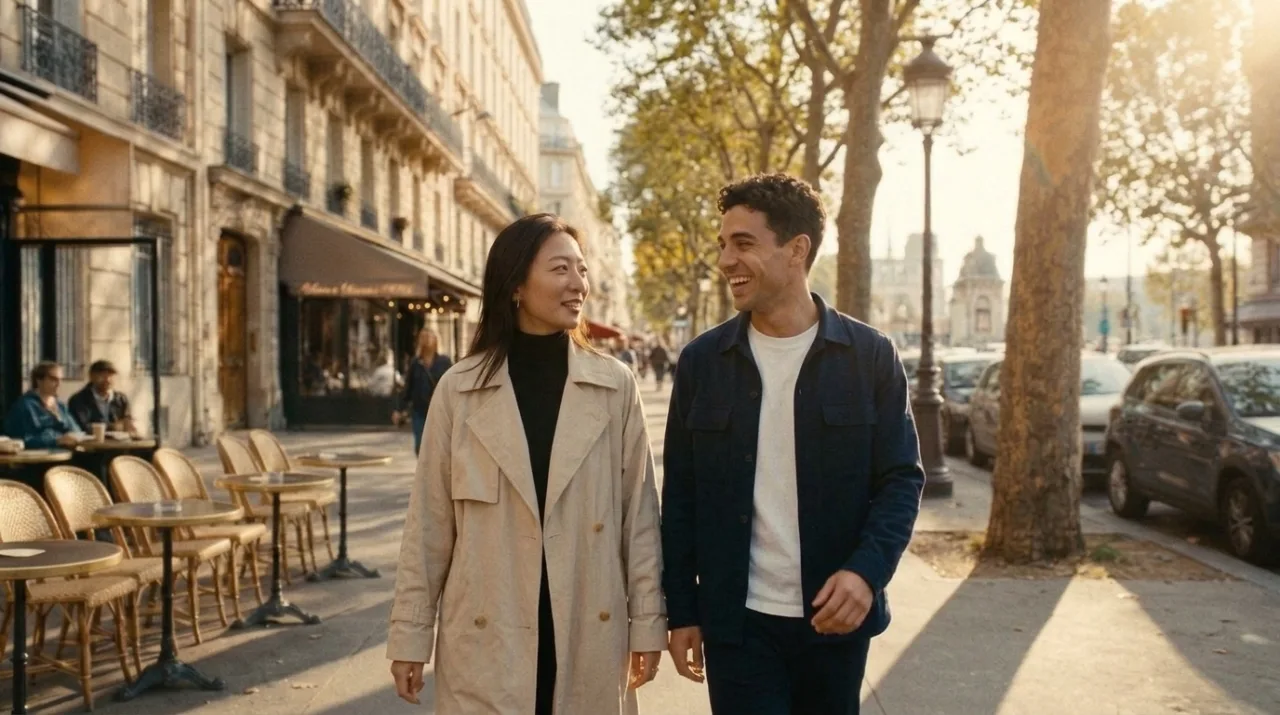
How to use Gemini Omni 1.2 Flash
From the first prompt to the final cut in four steps, right in your browser.
Choose a mode
Gemini Omni 1.2 Flash is already selected. Pick Text to Video, Image to Video, First & Last, Multimodal for reference images, Video Edit or Video Extend.
Describe the scene
Write who, where, the light, the camera move and any lines of dialogue. Add photos or a clip if your mode uses them.
Set length and size
Choose 4 to 15 seconds, 16:9 or 9:16, and 720p, 1080p or 4K.
Generate and refine
Press Generate, watch the clip, then ask for the next change in plain words until it is right.
Gemini Omni 1.2 Flash FAQ
Short answers on Gemini Omni 1.2 Flash and using it on Aleph AI.
Is Gemini Omni 1.2 Flash free?
New Aleph AI accounts get 30 free credits, enough for a 4-second 720p clip at 30 credits, with no Google subscription. For more videos, pick a plan or credit pack.
How much does Gemini Omni 1.2 Flash cost?
On Aleph AI you pay with credits, not a subscription: a 4-second 720p clip costs 30 credits and a 15-second one 120. Credit packs and plans are on the pricing page. In Google's own apps it comes with a Google AI plan, and the Gemini API bills developers per second of video.
Is Gemini Omni 1.2 Flash available now?
Yes. Google released it to everyone on November 5, 2026, and it runs on this page in any browser.
Can I use Gemini Omni 1.2 Flash in Google Flow or the Gemini app?
Yes, with a Google AI plan. Google is rolling it out in Flow, Google Vids and the Gemini app. On this page it runs in any browser, with free credits to start and no Google plan needed.
Is Gemini Omni different from Gemini?
Yes. Gemini is Google's assistant and family of AI models. Gemini Omni is the member of that family that makes and edits video: it takes text, images, video and audio and returns a clip with sound. Gemini Omni 1.2 Flash is its fast, low-cost version.
How long can a Gemini Omni 1.2 Flash video be?
Up to 15 seconds in one generation. Extend a clip in steps of 3 to 10 seconds to reach 30 seconds. First and last frame clips run 3 to 10 seconds.
Can I edit my own video with Gemini Omni 1.2 Flash?
Yes. Choose Video Edit, upload a clip of up to 15 seconds and describe the change, for example a new background, a different product or warmer light. Then ask for the next change in the same way.
Should I use Gemini Omni 1.2 Flash or Veo 3.1?
Use Gemini Omni 1.2 Flash for clips longer than 8 seconds, reference images and edits by chat. Use Veo 3.1 for quick 8-second shots with first and last frame control. Veo 3.1 runs in the AI video generator.
Do these videos have a watermark?
Videos made with free credits carry a small Aleph AI watermark, removed by any plan or credit pack. Google also places an invisible SynthID mark in every Gemini Omni video.
Does it work on my phone?
Yes. This page works in any mobile browser on iPhone and Android, with nothing to install. Choose 9:16 for vertical videos.
Make your first Gemini Omni 1.2 Flash video
Write the scene, press Generate and get 15 seconds with sound, then edit it by chat.