Aleph AI

Aleph AI Video Generator & Editor

Create cinematic AI videos from text, images, and references, then edit, restyle, extend, or transform existing footage with leading AI video models in one creative workspace.

More

See What You Can Create with Aleph AI

Explore three ways to create: build a scene from a prompt, animate a product photo, or restyle footage.

A Tyrannosaurus rex emerges from a misty prehistoric forest at dawn. Warm backlight catches its wet scales as the camera slowly tracks backward.

01

Create a Cinematic Scene from Text

Describe the subject, lighting and camera movement to turn a written idea into a cinematic AI video.
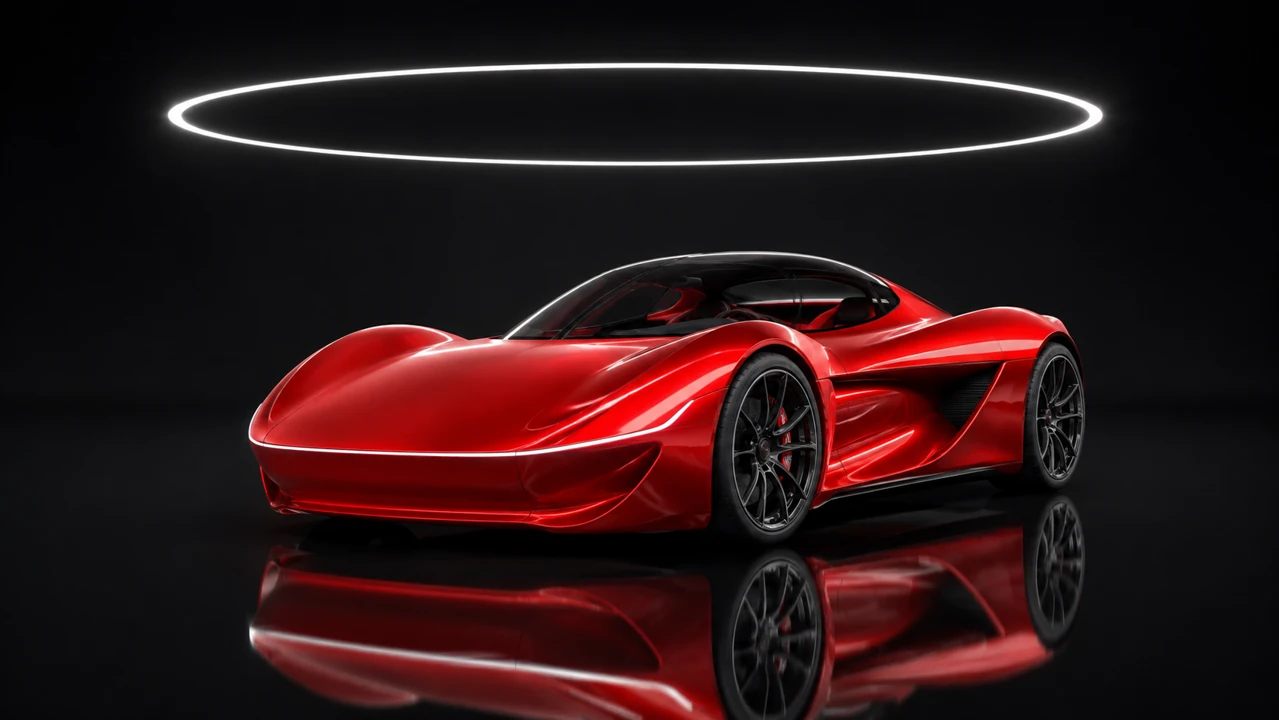
Vermilion concept car on a dark reflective studio floor
Input image

One image, brought to life with a gentle camera orbit.

02

Turn a Product Photo into a Video

Start with a product image and describe a camera move, changing light or movement around the subject.

BeforeAfter

Drag the divider or choose a view.

BeforeAfter
03

Turn Your Video into Anime

Give existing footage an anime look. Describe the new visual style and the details you want to preserve.

AI Video Generator for Text, Images, and References

Generate new videos from a written prompt, a still image, or multimodal references. Create text-to-video and image-to-video clips, connect first and last frames, or extend an existing scene with AI.

A circular portal carved into blue ice slowly opens, spilling warm amber light across a glacier cave as the camera pulls back.

Text to Video

Turn a written idea into a video. Describe the subject, action, setting, and camera movement to create anything from a quiet landscape to a lively scene.

Generate
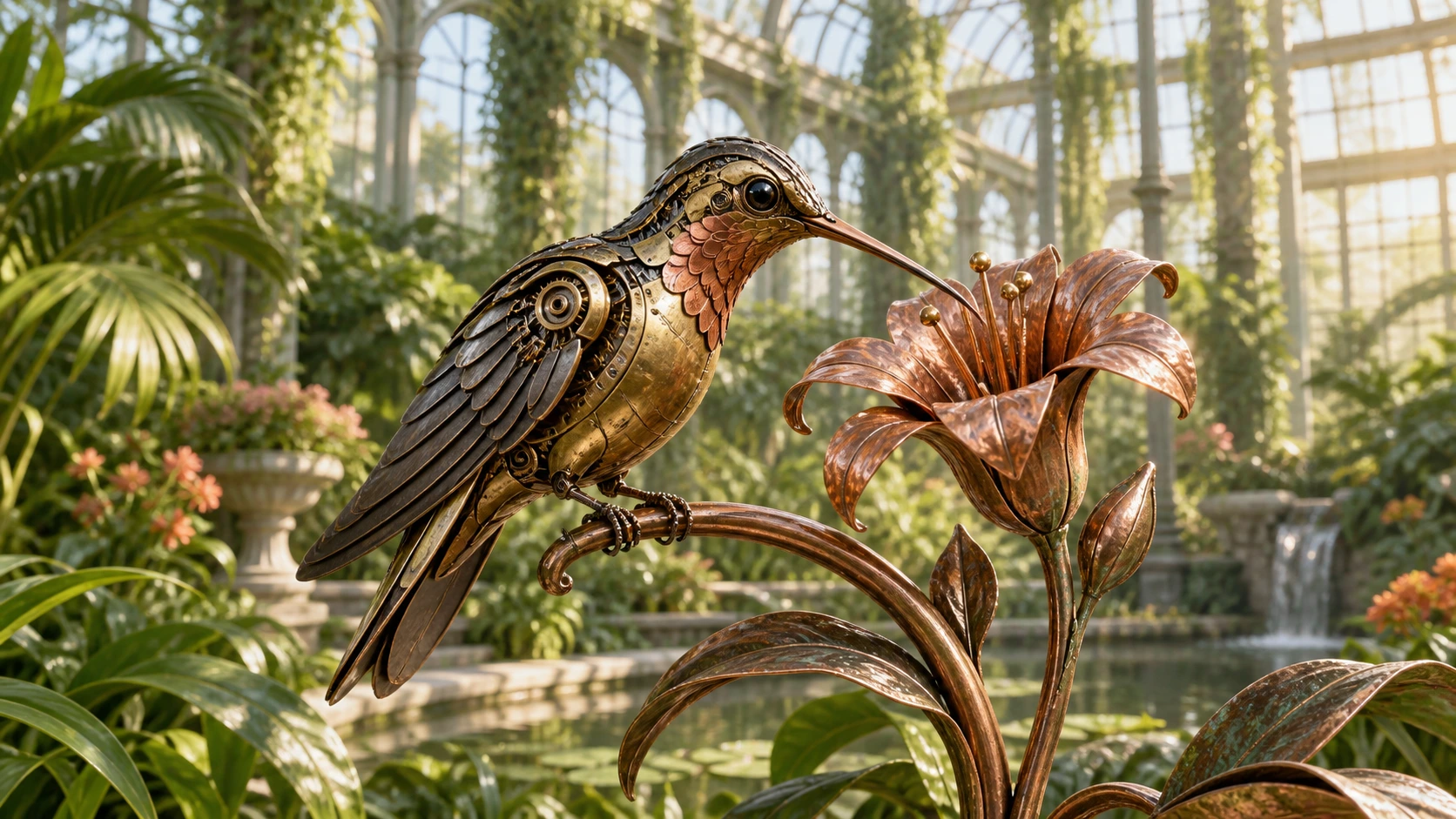
Mechanical hummingbird beside a copper flower in a sunlit glasshouseVideo frame

Image to Video

Bring a still image to life. Upload a photo, illustration, or product image, then add movement to the subject, camera, or surrounding scene.

Generate

Image, video and audio references

Reference to Video

Shape your video with image, video, and audio references. Combine them with a prompt to guide the look, movement, and sound of your scene.

Generate
First frame
First frame
Last frame
Last frame

First and Last Frame to Video

Choose where your video begins and ends. Add an opening image and a closing image, then describe the motion or transformation that connects them.

Generate
Original clip · 0–5sAI continuation · 5–10s

Extend Videos with AI

Keep your scene going. Add an existing clip and describe what happens next to generate a continuation of your video.

Generate
Explore the AI Video Generator

AI Video Editor for Prompt-Based Video Editing

Edit existing footage with natural-language prompts. Restyle a video, change the background or environment, add or remove scene elements, and continue a clip without rebuilding the edit by hand.

Ink paintingRealistic

Drag the divider or choose a view.

01

Video to Video Style Transfer

Transform existing footage with AI video style transfer. Turn a video into anime or cartoon styling, or explore a cinematic look. Describe the details you want to keep as you change the style.

BeforeAfter

Drag the divider or choose a view.

02

Change Your Video Background

Change the background and surroundings in your video. Describe a new location, different lighting, or another atmosphere to reimagine the scene.

BeforeAfter

Drag the divider or choose a view.

03

Add or Remove Objects from Video

Describe the object or detail you want to add, replace, or remove. Use your prompt to explain where the change should appear in the scene.

Explore the AI Video Editor

Generate, Edit, Restyle, and Extend Videos in One AI Workspace

Move between creation and editing without switching workflows. Aleph AI connects the most useful AI video modes in one place, with dedicated pages when you want to go deeper.

01

Text to Video AI

Turn a written idea into a generated video. Describe the subject, action, setting, lighting, and camera movement, then choose a supported AI video model for the scene.

Explore this workflow
02

Image to Video AI

Animate a photo, illustration, product image, or concept frame. Add motion to the subject, camera, lighting, or surrounding environment while keeping the source image as your starting point.

Explore this workflow
03

Reference to Video

Guide a generation with image, video, and audio references alongside your prompt. Use multimodal context when a text description alone is not enough to define the look or motion you want.

Explore this workflow
04

AI Video to Video

Start from existing footage and describe the transformation you want. Use prompt-based video editing for scene changes, visual reinterpretation, and other video-to-video workflows.

Explore this workflow
05

AI Video Style Transfer

Restyle existing footage while preserving the core scene. Explore anime, illustrated, cinematic, painterly, or other visual directions with a dedicated AI video style transfer workflow.

Explore this workflow
06

AI Video Extender

Continue a clip beyond its current ending. Use the existing video as context, describe what should happen next, and generate a continuation that extends the scene.

Explore this workflow

What Can You Create with Aleph AI?

Use Aleph AI for both original generation and targeted edits. These are practical ways to turn prompts, images, and existing footage into useful video assets.

01

Cinematic AI Videos

Build short cinematic scenes from a prompt with deliberate composition, camera movement, atmosphere, and pacing. Use text-to-video when you want to create the scene from scratch.

Open the related AI video tool
02

Product Image to Video

Turn a product photo or concept image into a moving shot. Add a camera orbit, changing light, environmental motion, or other presentation details without starting from a blank frame.

Open the related AI video tool
03

Animate Photos and Artwork

Bring portraits, illustrations, artwork, and still scenes to life with image-to-video. Add subtle subject movement, environmental animation, or a controlled camera move.

Open the related AI video tool
04

Social Media Clips and B-roll

Create short visual inserts, concept shots, transitions, and supporting footage for social posts or longer edits. Generate a new clip quickly, then refine or restyle it when needed.

Open the related AI video tool
05

Restyle Existing Videos

Transform footage into a new visual direction with AI video style transfer. Keep the underlying scene while changing the aesthetic for creative experiments, concepts, or alternate versions.

Open the related AI video tool
06

Change Backgrounds and Scene Elements

Use prompt-based AI video editing to reimagine the environment or modify scene content. Change a background, add an object, remove an unwanted element, or reshape the look of the shot.

Open the related AI video tool

Explore AI Video Effects and Tools

Create a specific effect or finish a focused editing task. Pick a tool, add your media, and make the result your own.

Remove Watermark from Video

Remove an unwanted watermark with the dedicated video removal tool.

Open tool

AI Kissing Video Generator

Turn a photo into a kissing video with an AI effect.

Open tool

Earth Zoom Out

Turn an image into a video that zooms out toward a view of Earth.

Open tool
Explore all video effects

How to Create AI Videos with Aleph AI

Go from your first prompt to a finished clip with the Aleph AI video generator and editor.

  1. Start with your idea

    Write a prompt, upload an image, or add a video you want to edit. Choose the mode that matches your starting point.

  2. Shape your video

    Choose your model and settings. Review the prompt, references, and credits in the tool before generating.

  3. Generate and make it yours

    Preview and download the result. Refine your prompt or continue editing to explore another version.

AI Video Generator and Editor FAQ

Answers to common questions about creating, editing, extending, and restyling videos with Aleph AI.

What is an AI video generator and editor?

An AI video generator creates new video from inputs such as text, images, or references. An AI video editor starts with existing footage and uses AI to change, restyle, extend, or transform the video. Aleph AI brings both workflows into one platform.

Can I create an AI video from text?

Yes. Use Text to Video and describe the subject, action, environment, visual style, lighting, and camera movement you want. The available models and settings are shown inside the AI video generator.

Explore the AI Video Generator

Can I turn an image or photo into a video?

Yes. Image to Video lets you upload a photo, illustration, artwork, or product image and animate it with a prompt. You can describe subject motion, camera movement, lighting changes, or movement in the surrounding scene.

Explore the AI Video Generator

Can Aleph AI edit an existing video from a text prompt?

Yes. The AI video editor accepts existing footage for supported editing modes. Describe the change you want, such as a new style, different environment, added scene element, removed object, or continuation of the clip.

Explore the AI Video Editor

What is the difference between an AI video generator and an AI video editor?

Use an AI video generator when you want to create a new clip from text, an image, or references. Use an AI video editor when you already have footage and want to transform, restyle, modify, or extend it. Aleph AI links both workflows so you can move between creation and editing.

Explore the AI Video Editor

Which AI video models are available in Aleph AI?

Aleph AI includes model pages and workflows for Seedance 2.0, Seedance 1.5 Pro, Kling 3.0, Sora 2, Wan Animate, and other supported video tools. The models available for a specific mode depend on the inputs and capabilities required by that workflow.

Explore AI video models

Can I use Aleph AI for free?

Yes. Sign in to receive free credits and try supported AI video generation and editing workflows. Each task uses credits, and the tool shows the required amount before you generate. Paid plans and credit options are available when you need more usage.

View pricing and credits

Can AI extend an existing video?

Yes. Video extension uses your existing clip as context and generates what happens next. Add the source video, describe the continuation you want, then use a model and mode that support video extension.

Explore the AI Video Editor

Can I change a video background, style, or scene objects with AI?

Yes, for supported editing modes. You can describe a new background or environment, restyle the footage, or request changes to scene elements. Dedicated AI video style transfer and prompt-based video editing pages are available for these workflows.

Explore the AI Video Editor

How do I choose an AI video model and check the cost?

Choose the creation or editing mode first. Aleph AI then shows compatible models, generation settings, and the credit cost for your current choices. This lets you compare the available options before starting a task.

Your Next Video Starts Here

Bring an idea, an image, or a clip. Sign in for free credits and start creating with Aleph AI.